Ui.Vision has always combined classic web automation with local, fast and free computer vision and OCR. On top of that foundation sit large language models — and Version 10 turns that AI from a set of commands into an assistant: the AI tab in the side panel now builds and fixes complete macros for you. Thanks to the new free Ui.Vision AI tier it works right after installation, with no API key and no signup.
Ui.Vision AI in action
Create a macro: ask "Extract this table and save the rows as CSV." The assistant can inspect the page and build a macro using the uiv.* JavaScript API. Review and run it, then reuse it when the source data changes.
Repair a workflow: when a form or page changes, use Fix with AI to inspect the failure and help update the macro. Check the resulting behavior before using it for repeated work.
Keep classic automation: recorded actions, CSV-driven form filling and repeatable downloads remain useful. AI helps build the macro; you can still inspect and edit the automation in Ui.Vision.
Use an external assistant: connect through the MCP bridge to create, run and debug macros from your chosen MCP client. The bridge requires a local installation and connection to the extension. For native desktop steps or local file access, add the Desktop App / XModules.
Open the AI Chat tab in the Ui.Vision side panel and describe what you want in plain language — "create a macro that fills out this form" — or press Fix with AI on a macro that just failed. The assistant then works like a colleague sitting at your browser:
Your own macros are safe. Everything the AI creates lands in its own AI_Chat folder. The assistant never overwrites the macros you wrote yourself.
Curious how it knows every Ui.Vision command and all the real-world automation tricks? We publish the assistant's complete, unedited instructions: The Ui.Vision AI System Prompt. That page doubles as a compact best-practices handbook for web automation — cookie-consent banners, shadow DOM, OCR text targeting, error recovery — and it shows how to replace the prompt with your own in Settings > AI > System Prompt.
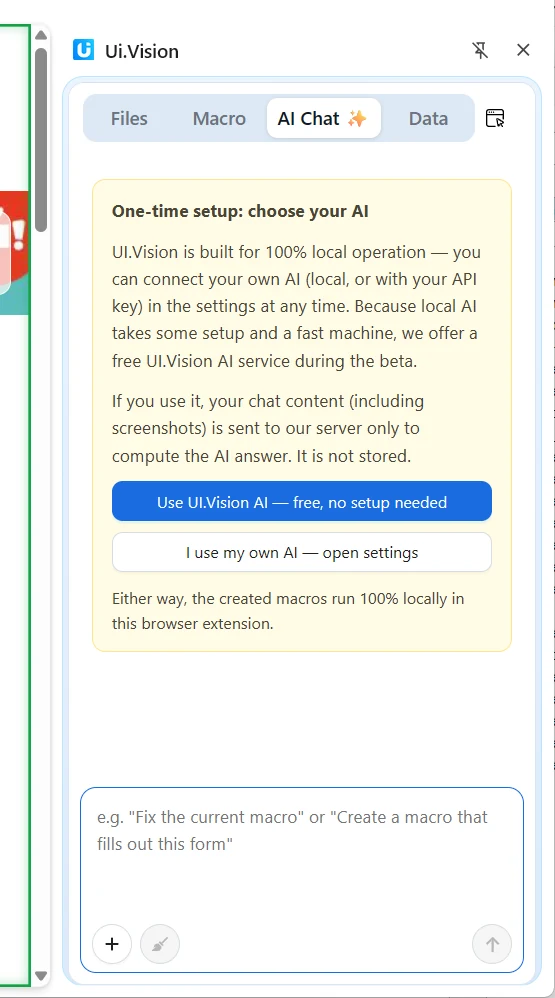 The one-time setup dialog in the AI Chat tab: pick the free Ui.Vision AI, or use your own AI.
The first time you open the AI tab, Ui.Vision asks you once which AI you want to use. Both answers are good answers:
Your macros are stored and executed locally. AI generation and AI commands use your selected provider. Hosted AI sends chat content and any included page data or screenshots to that service for processing. A local model keeps that AI processing on your machine; websites, cloud OCR and other network services used by a macro still make their normal network requests. You can change your AI provider at any time in Settings > AI.
Prefer to use your own account or your own hardware? Ui.Vision V10 supports three kinds of providers, both for the AI chat and for the aiComputerUse command:
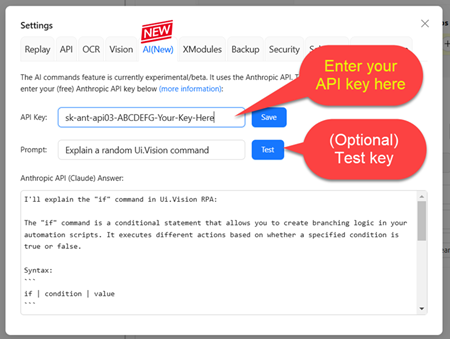 The AI settings tab
Next to the chat assistant, Ui.Vision has AI commands that you can use inside a macro, so AI becomes one step of a larger automation:
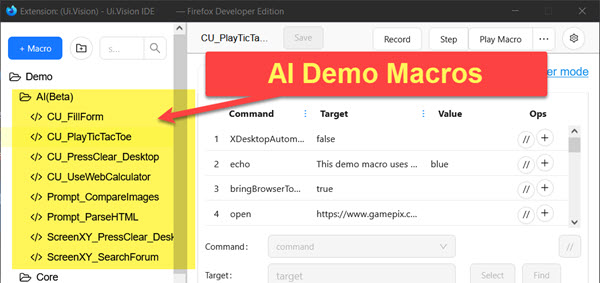 Test Computer Use and the other AI commands with the preinstalled demo macros.
AI support in Ui.Vision V10 keeps evolving. Based on your feedback in the user forum, we will improve and expand the integration with the next updates.
...then please contact us.